How To Create Depth And Nice 3D Ribbons Only Using CSS3
Thanks to useful graphic softwares (2D) we can easily create 3D elements, like ribbons and shadows, but we can also reproduce 3D scene using perspective, focus, color shading and opacity. There is also the possibility of using 3D softwares, like Blender, to create some 3D objects and images that we can use in our designs. There is an interesting article onCreativityDen about the fundamental ways of adding depth in web design works; it explains six basic techniques to simulate the 3D perception in our works and I suggest an attentive reading.
Five Minute Upgrade – Making Your Design Pop
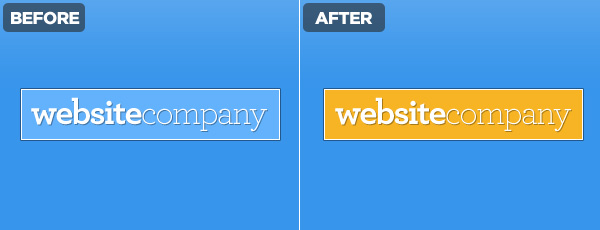
1. Brighten Colors
If you have a design that you just feel isn’t anything special – stop – crank up the color intensity – then reevaluate. Saturation plays a big role as far as mood goes. If you ever feel like you’re lacking inspiration when it comes to color schemes there are some great online tools, not to mention our own color series.2. Use Monochromatic Themes Sparingly
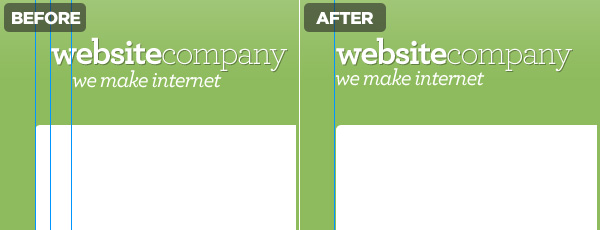
Monochromatic themes are great, there are some great black and white designs and sometimes using only a single color makes designing easier. The point is to explore other colors as well without getting too hung up on one in particular. Branching out to more than one color palette means you can provide emphasis with something other than the lightness/darkness of a shade of blue.3. Layout on a Grid
Here’s the deal, align your text and things will look better, not to mention it will increase your scannability. There should be some rhyme or reason to how you have placed your text, if there isn’t you risk a clumsy look which gives the impression that little thought went into it.4. Take the Time to Polish
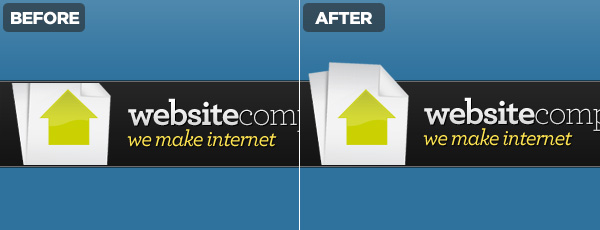
This was discussed wonderfully over at PsdTuts a while back but there are a few key things to keep in mind.- Don’t be afraid to use shadows sparingly, helps fight the flat and boring look.
- 1px lines are great at clearly defining edges.
- Using faint gradients over text and backgrounds gives a subtle 3D look.
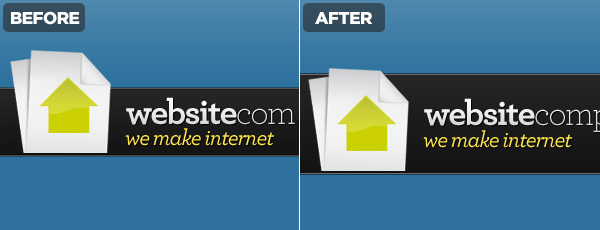
5. Defy Image Boundaries
Overlap your images in ways that are out of the ordinary. Wrap around banners, pop-up images, anything that shakes the normal “color inside the lines” mentality websites are so often designed around. If you are fascinated as to how to go about doing this, check out Lee Munroe’s article on Designing Out Of The Box.6. Add Whitespace
Give your user room to appreciate what you’ve done, it will help them focus on each element and not feel overwhelmed. Think of the padding as the frame for your work.7. Textures
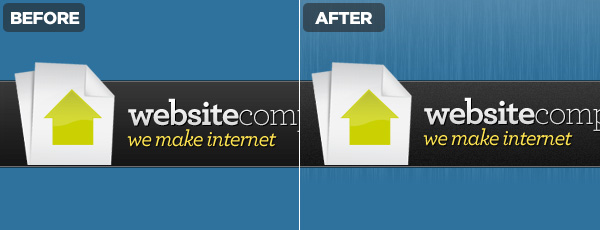
Adding noise to a background, including some rock pattern that fades into the backdrop, scribbles, whatever. Do something that makes your background a piece of artwork in its own right while complimenting the foreground.8. Strokes
Don’t have them, use them. Strokes can be used in addition to the above effects to differentiate the foreground from the background. They can be a good substitute if you are trying to avoid gradients and maintain a more 2D look.The Wrap Up
You’re now armed with a handful of tricks that can have an positive effect on your projects. Use your best judgment, not all of these adjustments are appropriate for every project. If you’re interested in a good example of all these steps put into play, check out Marketcircle’s website.About the author Sam Dunn
Sam is a partner at One Mighty Roar, a creative design and interactive media company from Massachusetts, USA. He can be found online at Vivalasam and Twitter.Content Source : http://buildinternet.com
10 best FREE applications that you probably didn’t know about.
I’m a big fan of FREE STUFF, so it should be no surprise that I gravitate towards free software. Sure much of it is junkie, but there are some realy diamonds out there that haven’t hit the mainstream yet. Here’s my favorite 10.
1. Logmein (https://secure.logmein.com)
Ever find yourself away from home and wishing you could e-mail yourself something? Or maybe you have a mother-in-law who lives 4 states away and is always having computer problems, and instead of loading up the kids in the family trickster for a marriage-trying trip, you could just log in to her computer remotely¦.without her needing to do anything? This is where Logmein comes in. There are lots of products out there that will do this, but very few will do all these things as well as Logmein ds for free.
2. Mesh (http://www.mesh.com)
Microsoft has a knack of not promoting some of the apps that they offer. Mesh is one of those apps. Another computer sharing application, but Mesh displays all the computers in a 3-D rotating ring and also offers a Web DesktopÂ� that syncs with all the computers on your Mesh. There is a promise of making Mesh work on Macs, but I haven’t yet seen it work. Mesh is super responsive and I really like how it feels while using it! The interface is clean and intuitive and I think the reason Microsoft ds not promote it is too many people would use it!
3. PhotoStory 3 (http://www.microsoft.com/windowsxp/using/digitalphotography/PhotoStory/default.mspx)
Yet another non-marketed gem from Microsoft. Photostory 3 is one of the easiest ways to create a very professional photo slideshow complete with background music (MP3 or you can create your own with the built-in music generator) and narration. The application is super easy to use and the results are far superior that some softwares that I’ve paid to use. The only downfall is that it dsn’t have a built-in burning application to burn the slideshow to CD or DVD.
4. Orb (http://www.orb.com)
Like many people, I don’t get to stay at home with my vault of audio and video goodness at my disposal. This is where Orb steps in. Orb allows a simple way to put your audio, photos and video online and accessible to your little antsy fingertips. One of my favorite features is the ability to stream webcams live on the internet, so if I miss my dog, I can log in and see and hear him. Very slick and very easy to set up!
5. Dropbox (http://www.getdropbox.com/)
Wouldn’t it be nice to have a storage cloud of your own to store items and further more wouldn’t it be nice if it synced with your other computers? That’s Dropbox. I use it to store keepersÂ� or documents and small apps that I want in multiple places or to ensure I don’t lose it. Dropbox installs easily and creates a folder on your computer. Drag the files you want to sync into the Dropbox and dropbox takes care of the rest. All the other computers you log into the dropbox with can now access and upload their own files. A great solution for simple collaboration or small off site back ups.
6. MWSnap (http://www.mirekw.com/winfreeware/mwsnap.html)
If you need to do lots of screenshots for websites or manuals, this is a great tool. It has a nice zoom tool to enlarging parts of the screen to draw focus to it, a ruler for measuring the size of items in the shot, and can export in BMP, JPG, TIFF, PNG and GIF.
7. Camstudio (http://sourceforge.net/projects/camstudio/files/)
If you need to create a screencast, this a a great free tool. Comparable to Camtasia or Adobe’s Captivate, it’s not as feature-rich as those, but it will get the job done. It will record whatever you do on your screen and produce and AVI or SWF output. Plus you can narrate as you go through a microphone. This is the easiest way to convey complex techniques or just a way of communicating step by step instructions.
8. DimDim (http://www.dimdim.com)
A tool similar to WebEx, DimDim allows you to create free webinar-style sessions where you can share screens, whiteboards, presentation, web pages and even voice and video. I have been super impressed with DimDim in that it supports up to 20 people, it dsn’t require any installation and it handles the voice and video, unlike some other pay-for softwares. Sure, it isn’t as ubiquitious as WebEx (I’m certainly not going to tell someone to DimDim meÂ�, but for free, this is a wonderful offering.
9. Ning (http://www.ning.com)
If you’ve ever wanted a web site for your church group, scouting group, or maybe even class reunion, then Ning is the place to go. It’s a DYI social networking site that allows you to roll your own blog/forum/event feed/calendar/whatever. I’ve used Ning for several side projects to collaborate with large and small groups of people. I also use Ning for a special interest web site-BisManPhoto.com, which is a site devoted to camera lovers in the Bismarck/Mandan North Dakota area. The sites scale wonderfully and gives me the freedom to worry about content rather than functionality.
10. Qik (http://qik.com)
Everyone carries their cellphones with them all the time. Ever wanted to stream live video from your phone? That’s what Qik ds and it ds it beautifully. Great for budding independent journalists wanting to stream live to the web (and post an alert on twitter simultaneously) and it’s equally great to share part of your vacation with people at home. The stream is recorded from your phone and saved for posterity so people who couldn’t see the live stream can watch it archived on the Qik site.
Article Source : http://www.zmogo.com
Making web pages extend to the bottom of the browser window
Introduction
If you ever made a web site with the content in a center column and a different background for the body, or with a short lateral navigation bar, probably you experienced the problem of some elements not extending to the bottom of the browser window when the height of the content is lesser than the document area of the browser window.
For simple designs, like pages with a side navigation bar and the rest of the page for contents, faking the layout with a background image can be enough to fix the problem, but for more complex layouts real full height element usually are required. For that cases we can resort to JavaScript to perform some DOM manipulation magic.
The CSS layout
I'm going to use a layout with one fixed-width centered content area, a menu at the top of it and some decorations at the top and bottom of the content area. Let's take a look to the CSS code:
body {
padding: 0;
margin: 0;
background: White url(img/img_116.gif);
text-align: center; /* IE 5.x */
}
#menu {
width: 650px; /* IE 5.x */
width/**/:/**/ 610px;
margin: 0 auto;
padding: 10px 20px;
background: transparent url(img/sample-menu-border.gif) repeat-y left top;
text-align: left;
}
#contents {
position: relative;
width: 650px; /* IE 5.x */
width/**/:/**/ 500px;
margin: 0 auto;
padding: 50px 75px 30px;
background: transparent url(img/sample-contents-border.gif) repeat-y left top;
text-align: justify;
}
You can see a couple of examples of a page with a lot of content and a page with very few content. If you are wondering about the "/**/:/**/", it's an alternative fancy method to the box model hack.
Fixing the layout
The JavaScript fix involves getting the size of the document element and the container we want to resize (in this case #contents), and the position of this element. There is no standard DOM attribute for this, but almost all browsers support the offsetHeight and offsetTop attributes (although Opera needs a bit of tweaking for getting the height of the document).
Then we compare the size of the target element (#contents) with the size of the document minus the top offset of that element. If it's smaller, then a style rule with the proper height is applied to #contents (making a difference for IE 5.x due to its broken box model). Also, the code is attached to the onresize event for readjusting the size if the user makes the browser window bigger.
The resulting JavaScript code would be something like this:
var isIE5=navigator.userAgent.toUpperCase().indexOf("MSIE 5")!=-1;
var targetElementID="contents", targetElementStyleOffset=80;
function adjustHeight() {
if (document.getElementById) {
var targetElement=document.getElementById(targetElementID),
documentHeight, totalOffset;
if (targetElement && document.documentElement.offsetHeight
&& targetElement.offsetHeight && targetElement.offsetTop) {
documentHeight=document.documentElement.offsetHeight;
if (targetElement.offsetHeight Also, for making the script work in Opera 8 and Konqueror 3.4 we need to set the height of the html element to 100%:
html {
height: 100%;
}
For using the code you only need to modify two values and include a call to the function. First, you need to change the values that appear in bold in the script to reflect the following data:
- The ID of the element that need to be extended (#contents in the previous example, so we'll use the string "contents").
- The vertical offset generated by the styles applied to the element (margin, padding and border). In the example we have:
so we use 80 for the style offset. This offset is not applied to IE 5.x due to its broken box model. See the notes below for an explanation of this.padding: 50px 75px 30px;
margin: 0 auto;
For activating the script, we can use the onload event, but the best method is including also a call to the adjustHeight() function just before closing the body tag, like:
This usually works fine since all the DOM objects are already defined at that point, and it's much faster that using the onload event, because this event doesn't trigger until all the page is loaded (images and ads included). Anyway, assigning the function to the event ensures that the function will be called.
Following the next link you can see an example of the page with the JS fix applied.
The script works in Firefox/Mozilla, Internet Explorer 5/6/7, Opera 7/8, Konqueror 3.4, Safari and Omniweb (thanks to Stephen Caudill for the Mac feedback), which adds a nice 99% of the current browser pool :-) .
Notes and limitations
- If you need to apply any padding and/or margin to the container you want to resize, you have to express it in pixels, since the script needs that value for setting the proper height. Since the box model doesn't include padding and margin in the dimensions of the boxes, and I was unable to find a reliable way to get the margin and padding values from JS, this manual workaround is needed.
- The script doesn't downsize the target container, only enlarges it. Take into account that the goal of the script is getting a page that extend at least to the bottom of the browser window, not a page that fits always in the browser document area.
- The script doesn't work when the user changes the base font size in the browser after the page is loaded. Simply there is no JS event to catch this. Anyway, the next time the page is loaded with the new size, the script will work fine.
How to Turn Humdrum Photos into Cinematic Portraits
Adobe Design Premium CS5 software offers you complete creative freedom without sacrificing precision or quality, whether working in print, web, interactive, or mobile media.
There are a plethora of ways to treat a portrait for a myriad of uses, but that is for another feature. Let’s tackle adding drama or a cinematic quality to a regular, humdrum portrait. Let’s even throw in a little bit of faking HDR. That way if you work on a project that requires a stunning shot without the stunning photography, you’ll be able to cobble something together using your mad skillz!
Read More
Touch The Future: Create An Elegant Website With HTML 5 And CSS3
Demo | Download
I’m sure that who chooses to work as web designer makes a choice of heart, a choice of love. He/she decides to bet any given day on his creativity and his ability of producing an idea and of making it tangible, visible and perceptible for all. These crazy men have my respect. But, also when the creative side is very important for a work, there exists a logical (and technical) part in all creative process.
There are some moments and situations in which the creative mind needs an analytical method to achieve the objective, that is, for us, the creation of a well-done website.
In his article on Design Informer titled “Web Design Iterations And Algorithm,” Adit Gupta explains how we can approach a web design work and how a website project can be processed in a number of iterations following a main algorithm. Well, generally it’s just how Adit has described.
Our brain works well, in order to solve a big problem, if we can divide the main issue in N operations that solve N little difficulties, and the total sum of these N little steps provides the solution for our big problem. Perfect, ‘Houston, we have a big problem!’ We should create a working web design. Actually the common routine requires the following main steps:
- Step 1: understand the theme and the topics of the website and decode the client’s requests
- Step 2: choose the right style and sketch your ideas
- Step 3: draw a clean and clear wireframe to summarize the structure of the website
- Step 4: design the website (in pixels) through an image editor, like Photoshop, to create a real-scale mockup
- Step 5: convert your psd mockup to HTML and CSS
Five macro-steps to build an effective website using brain, pencil, paper, Photoshop, HTML and CSS. But technology doesn’t stop, luckily, and we have other two great allies for the future to design better website: HTML 5 and CSS3.
Read more
-
The Quick 10: 10 Things You Probably Didn’t Know About Harry Potter - With Harry Potter and the Half Blood Prince coming out in the U.S. later this week, it’s time to out myself as a Slytherin Supporter. Maybe you already kn...15 years ago
- AD (1)
- CSS (2)
- Freebies (1)
- Fun (1)
- Inspiration (2)
- interview (1)
- JavsScript (2)
- jQuery (1)
- Photography (1)
- Programming (1)
- Tutorial (6)
- Typography (1)
- Web Design Tips and Tricks (4)
- Wordpress (1)
- XHTML (1)